Ghost
You can add a voice recording widget to your Ghost site in a few steps. In this guide we will walk you through adding the Soundbite embed so your readers and listeners can send you voice messages directly from your site.
- You will need to be logged into your Ghost admin panel.
- You will need access to Code Injection settings (available on all Ghost plans).
Add the Script via Code Injection
Ghost has a built-in Code Injection feature that lets you add scripts to every page on your site without modifying your theme.
From your Ghost admin panel, navigate to Settings.
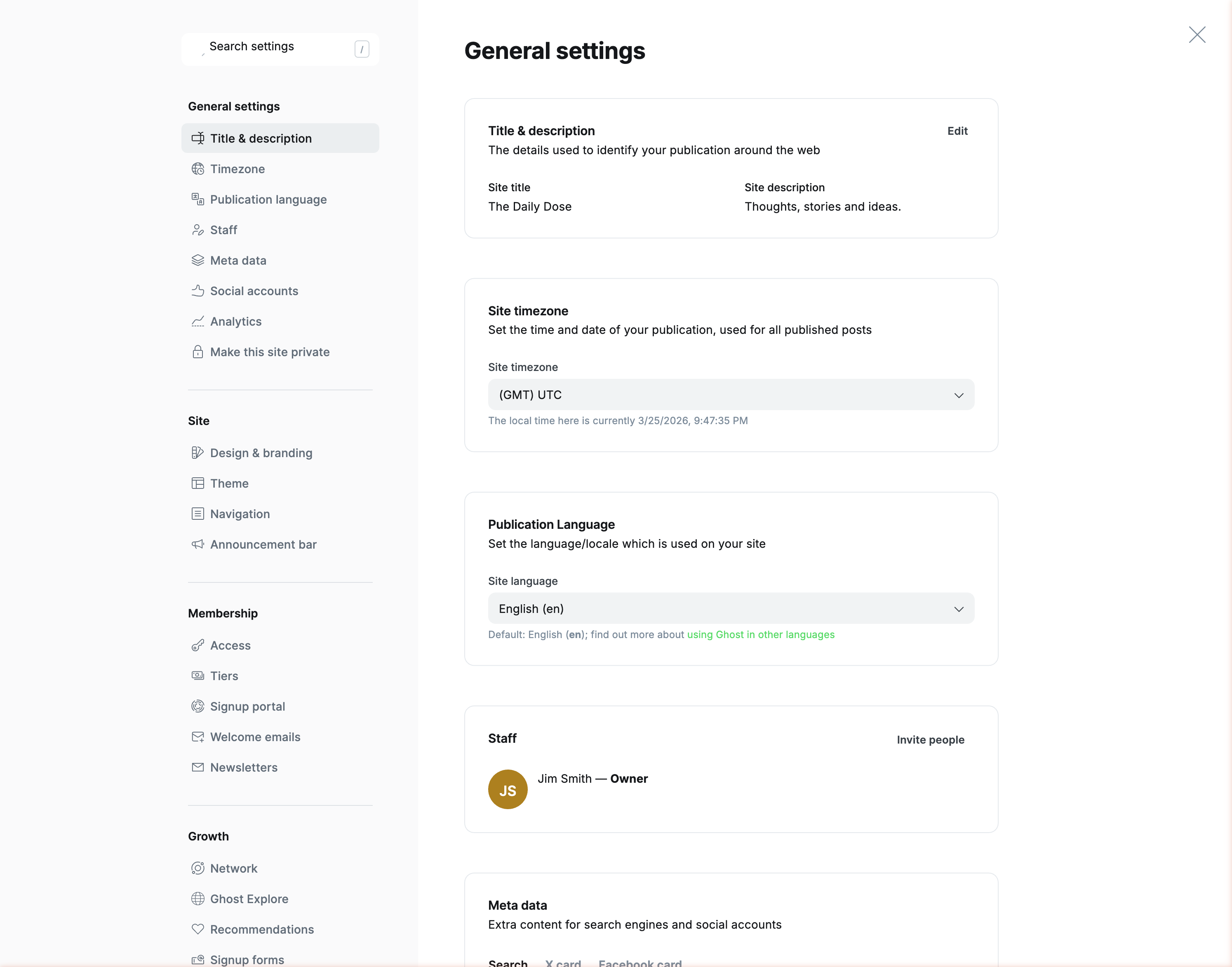
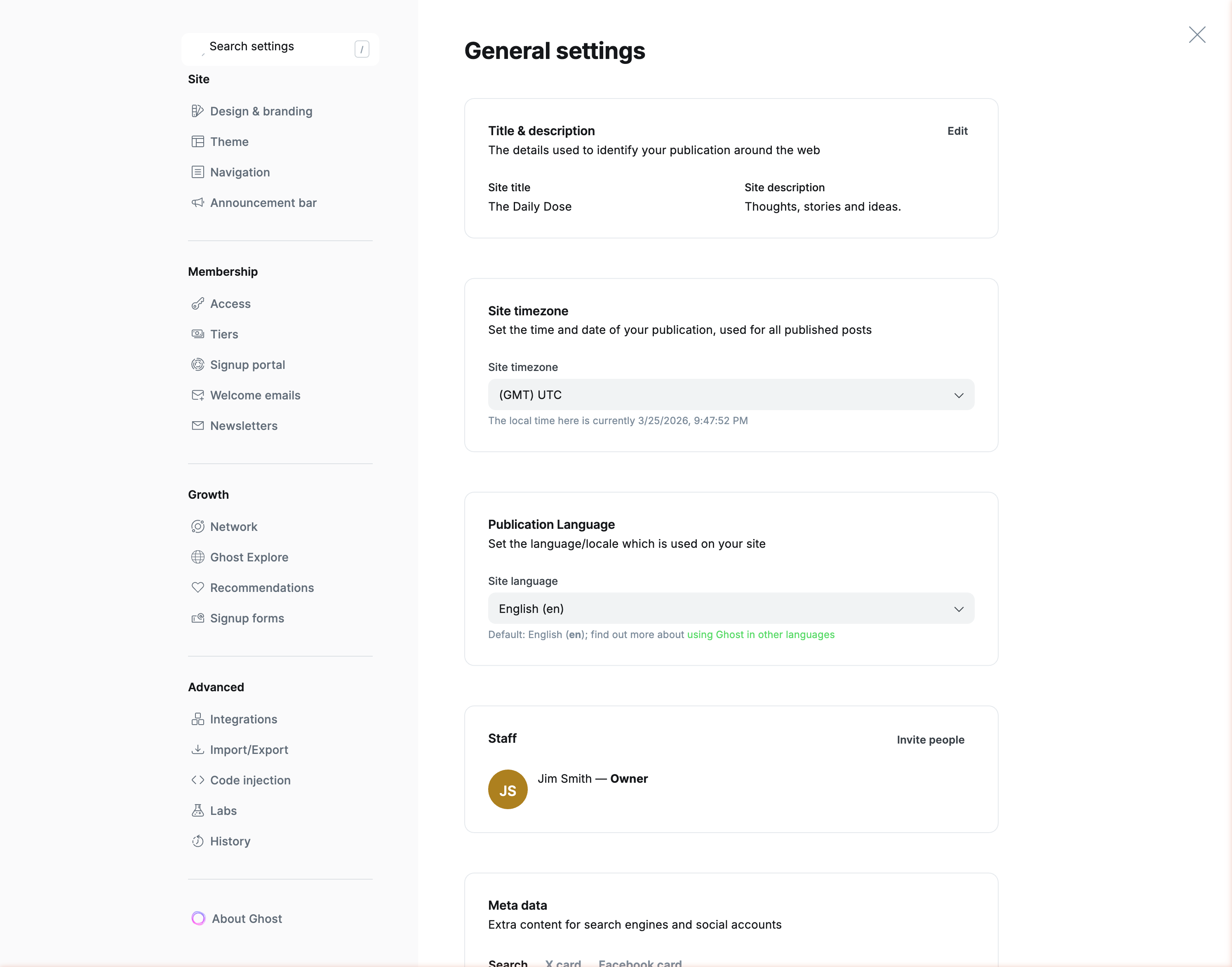
Scroll down to the Advanced section and click Code injection.
In the Site Header section, paste the following script tag:
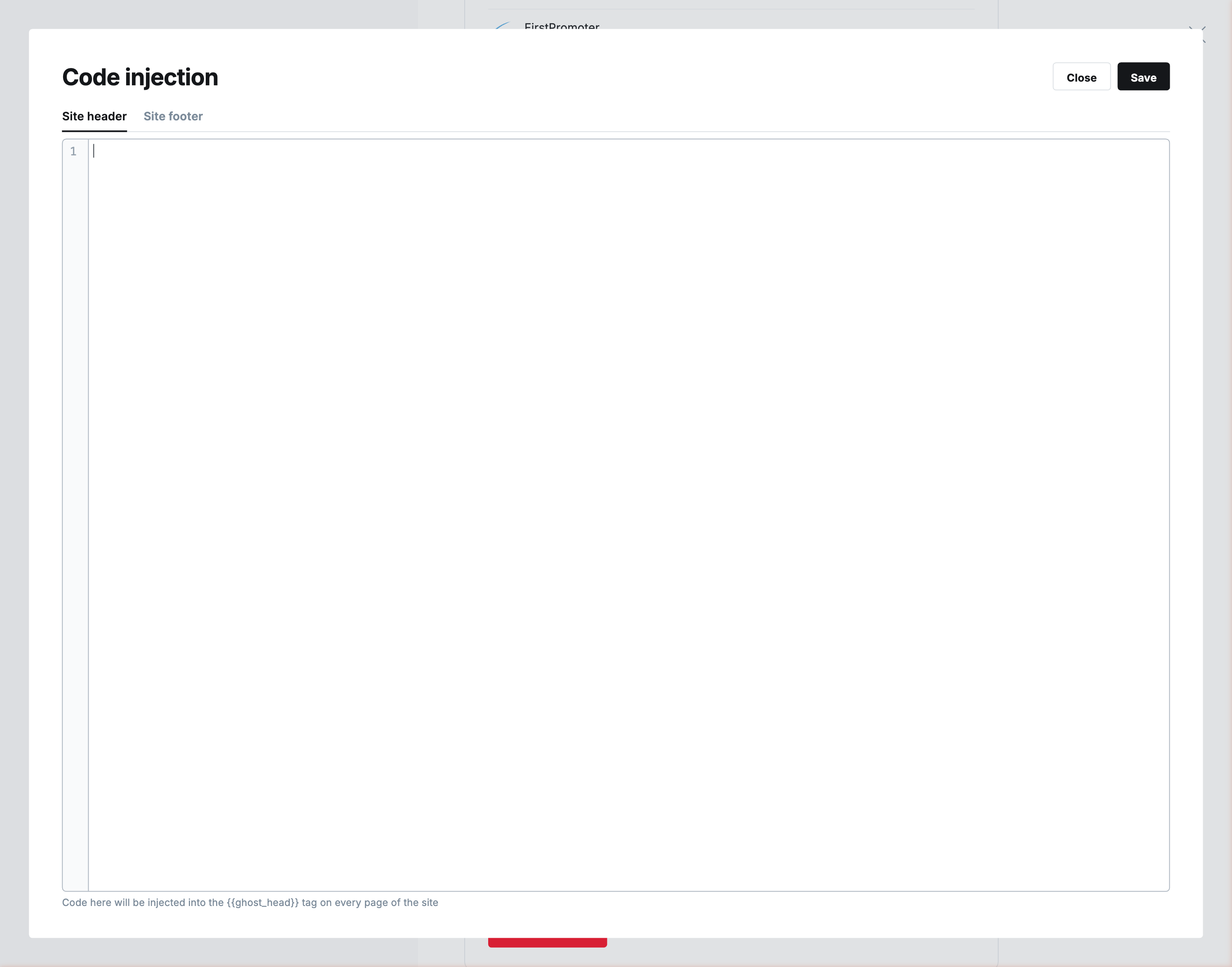
<script src="https://cdn.soundbite.so/embed.js" defer></script>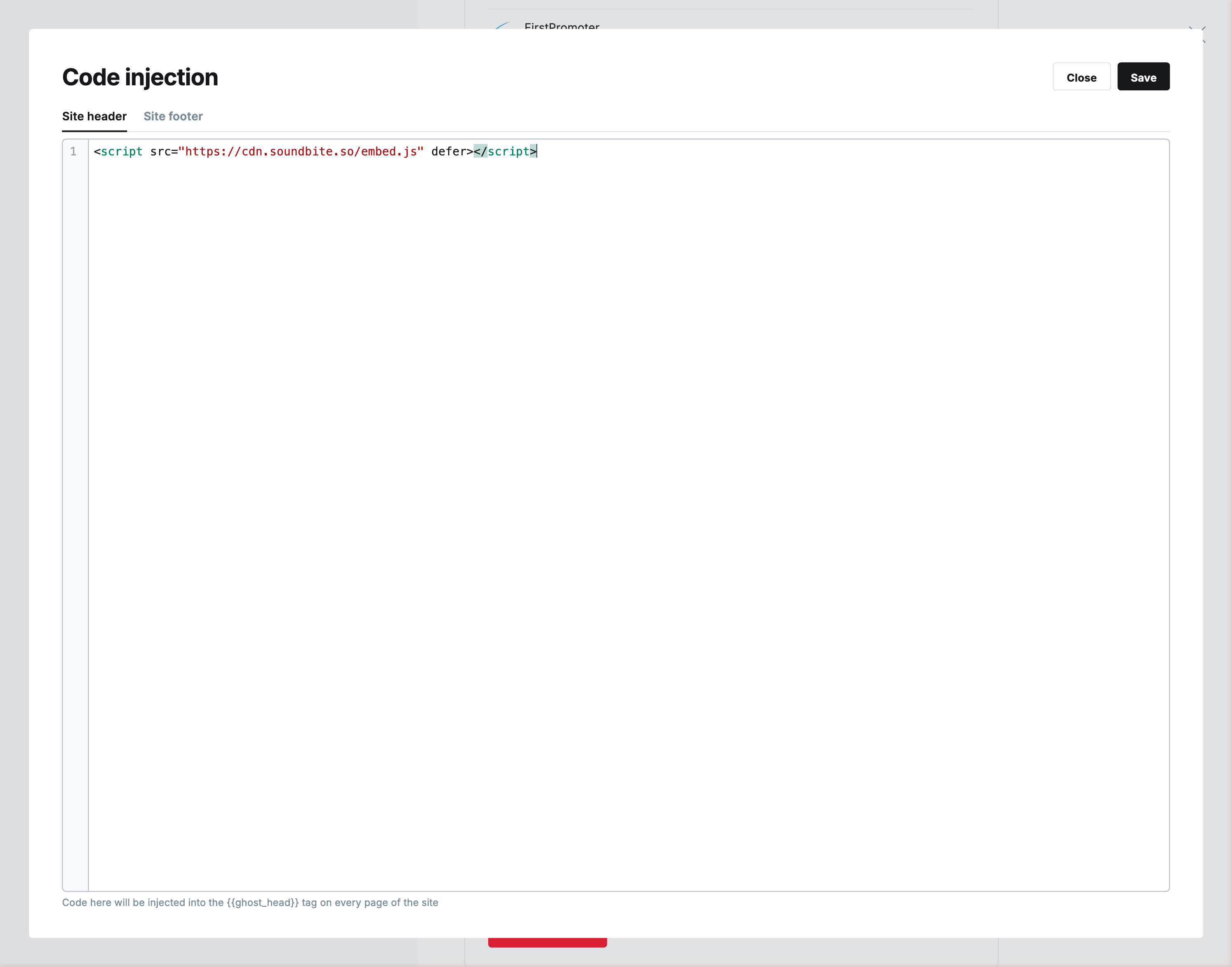
Click Save. This loads the Soundbite embed script on every page of your site so you can place the recording widget wherever you need it.
Adding the Widget to a Page or Post
Now that the script is loaded, you can add the recording widget to any page or post using Ghost's HTML card.
Open the page or post where you want the widget to appear. Click the + button to add a new card.
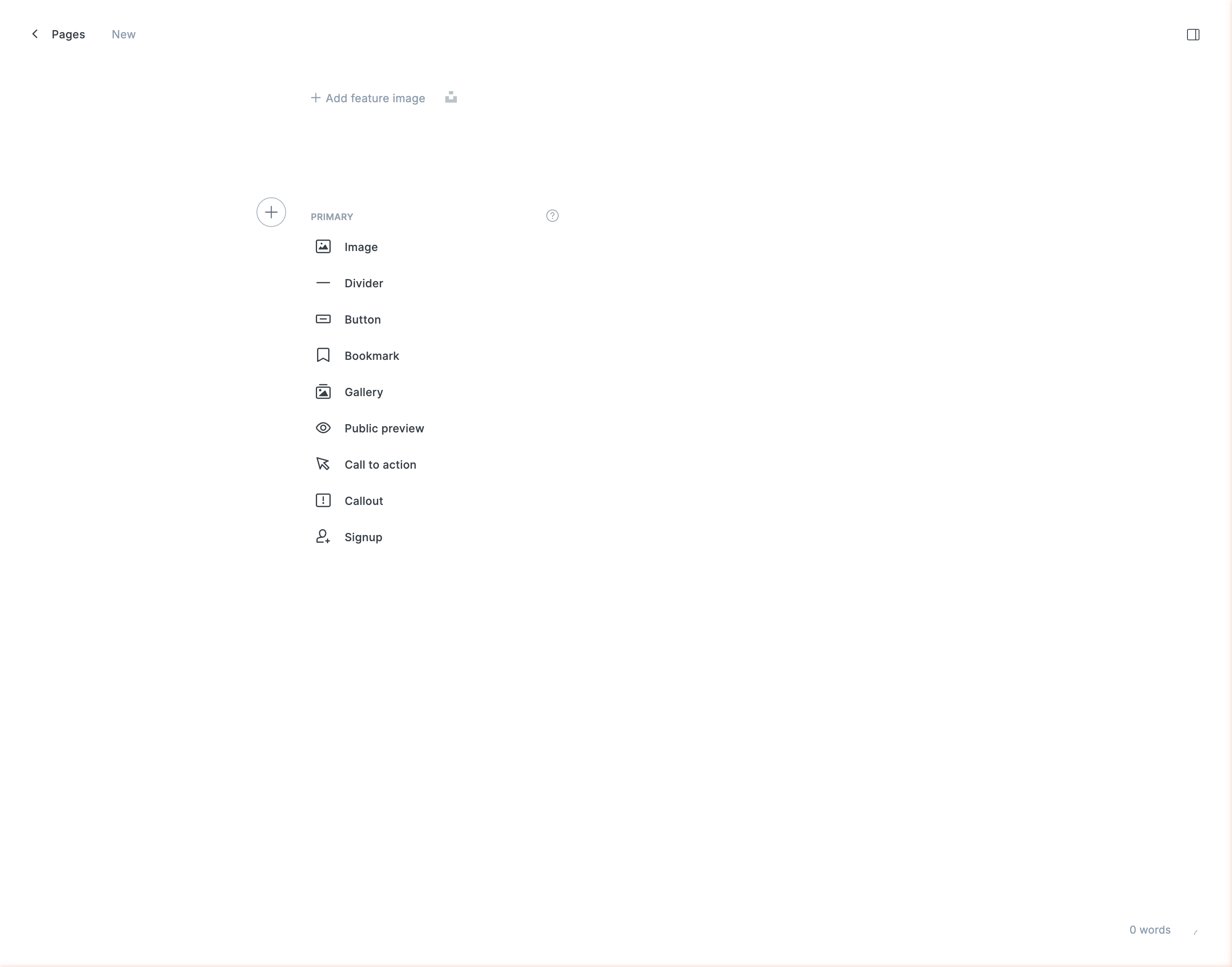
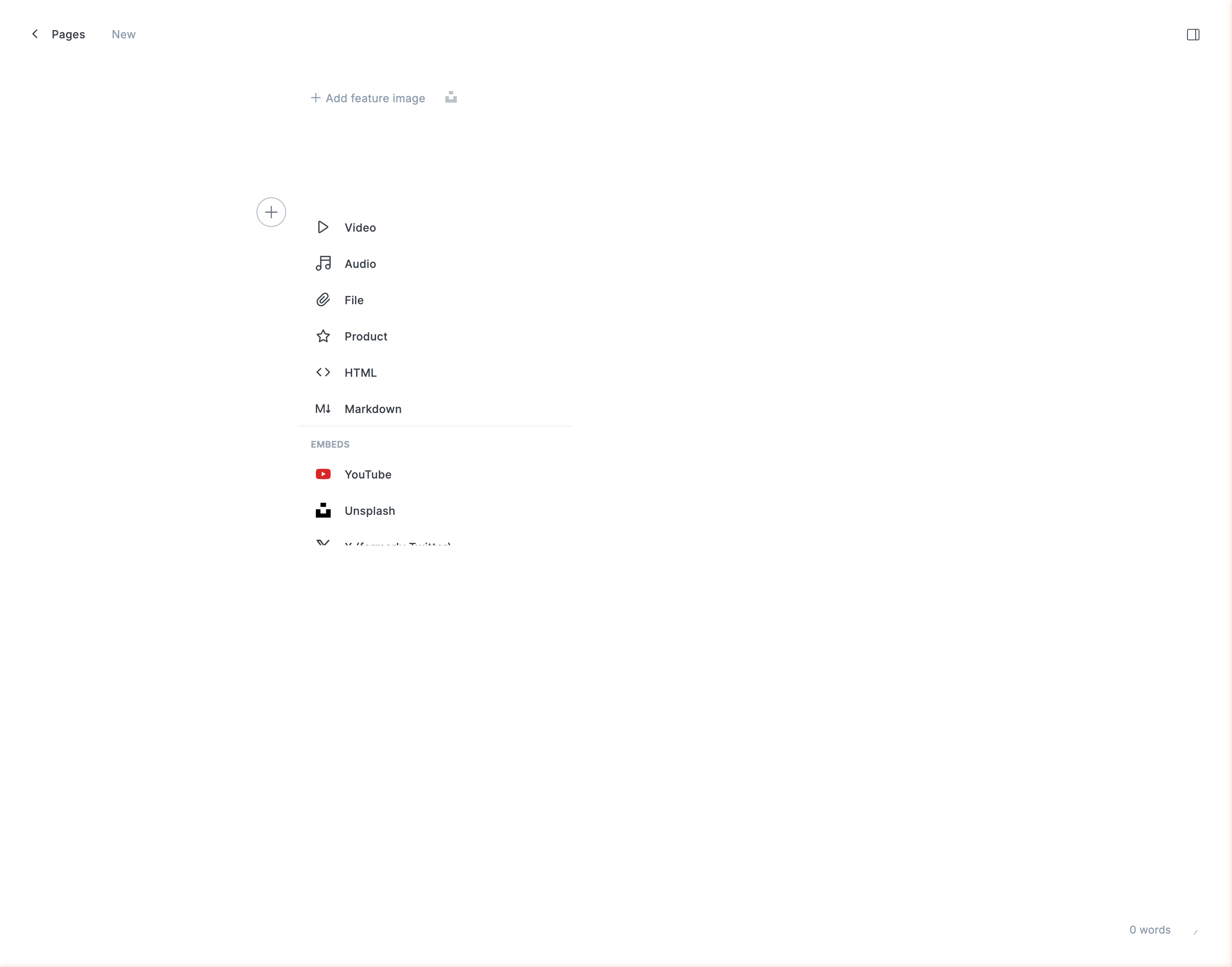
Scroll down in the card menu and select HTML.
Paste in the widget code from your Soundbite account Widget settings page:
<div data-soundbite data-soundbite-token="your-account-token"></div>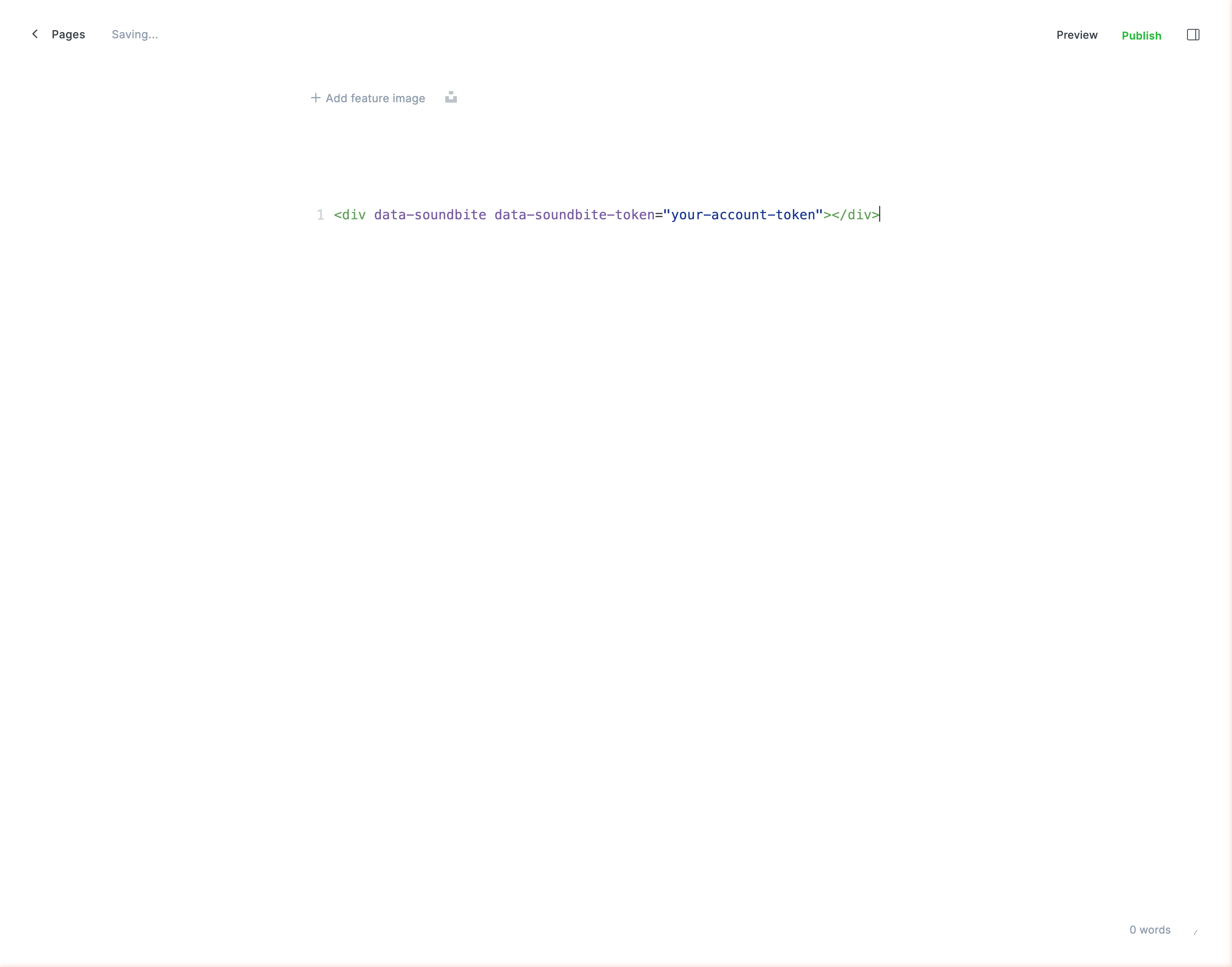
Click away from the HTML card to confirm, then publish or update your page. The voice recording widget will now appear for your visitors.
Using Code Injection on a Single Page
If you only want the widget on a specific page and prefer not to load the script site-wide, Ghost also supports per-page code injection. Open the page or post in the editor, click the settings gear icon in the top right, and scroll down to Code injection. Add the script tag in the Post Header section and use the HTML card for the widget code as described above.
You may need to configure your Allowed sites to enable the widget to render on your domain. To customize the look and behavior of your widget, check out the Customization section.